Log into your ZONE account.
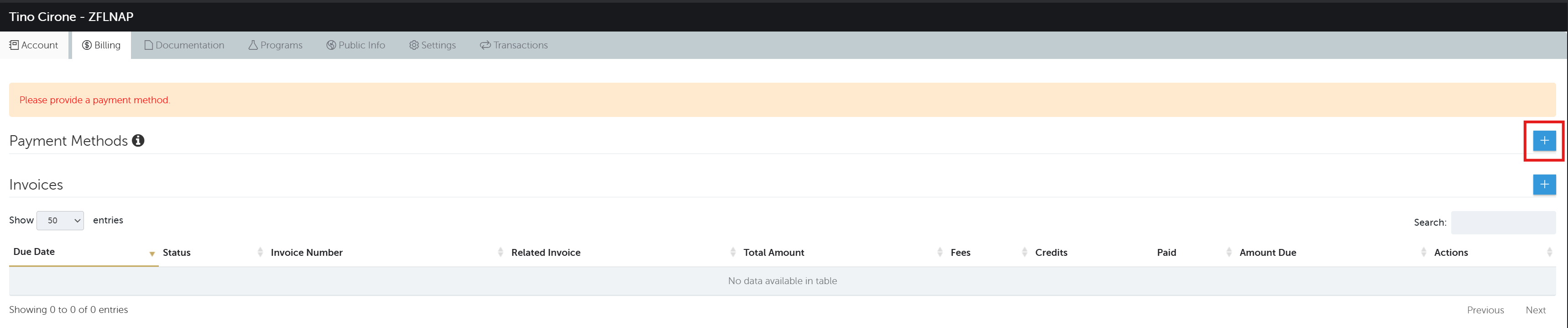
Your billing page should look like this, see below screenshot:
You will need to go to the billing section on your profile.
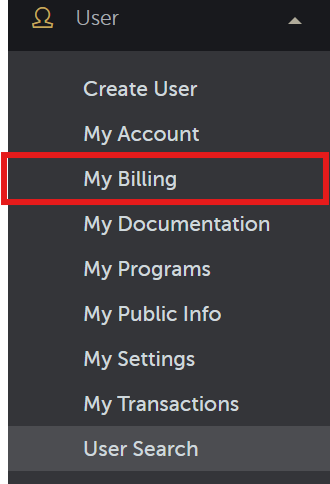
On the left hand side you should see the label for user, and then My billing, see below screenshot:
On the left hand side you should see the label for user, and then My billing, see below screenshot:

Click the blue button on the right hand sign of the screen under payment methods, see screenshot below:
A new screen should pop up where you can select credit card and this screen should pop up, see screenshot below:
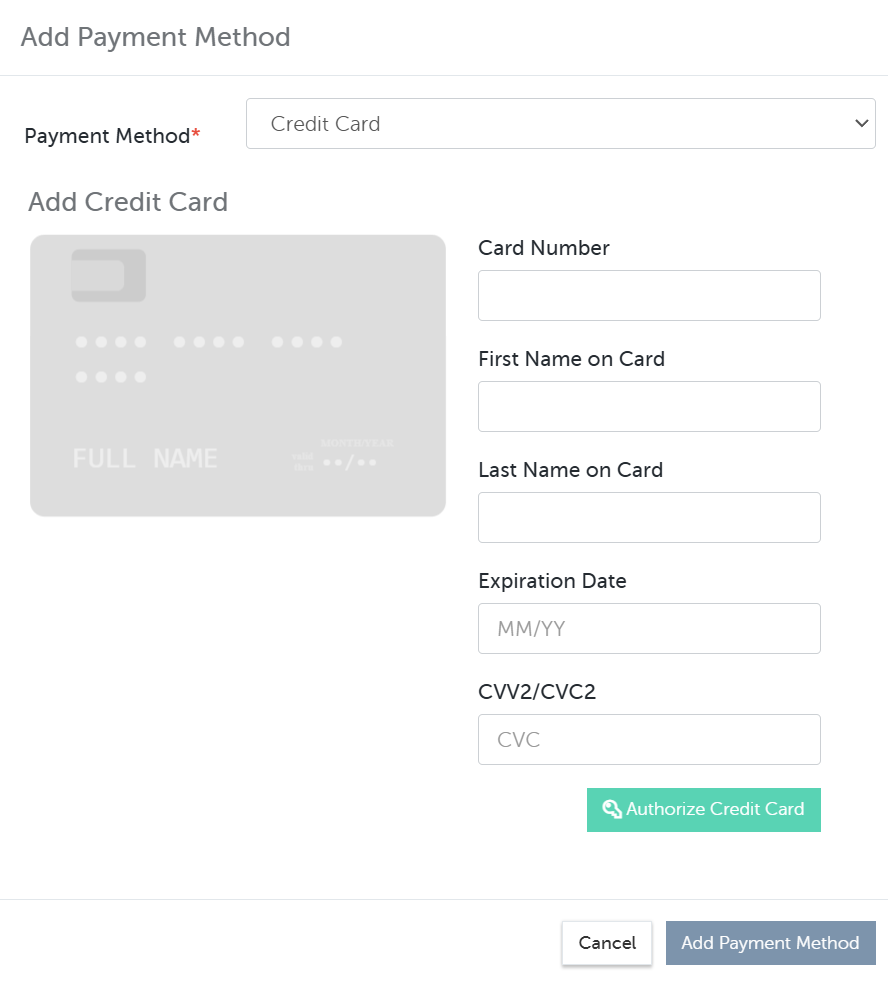
After you enter the card information, hit Authorize Card.
It will then confirm the account is authentic and then you can click save/add payment method.
If you now you two payments on profile, click the grey arrow up icon on the right to make the new card your primary, see screenshot:

After you verify the new card is set to primary, you can click the red x, located under the action label to delete the old CC off your account, see screenshot:


Was this article helpful?
That’s Great!
Thank you for your feedback
Sorry! We couldn't be helpful
Thank you for your feedback
Feedback sent
We appreciate your effort and will try to fix the article